OpenMRS Demo

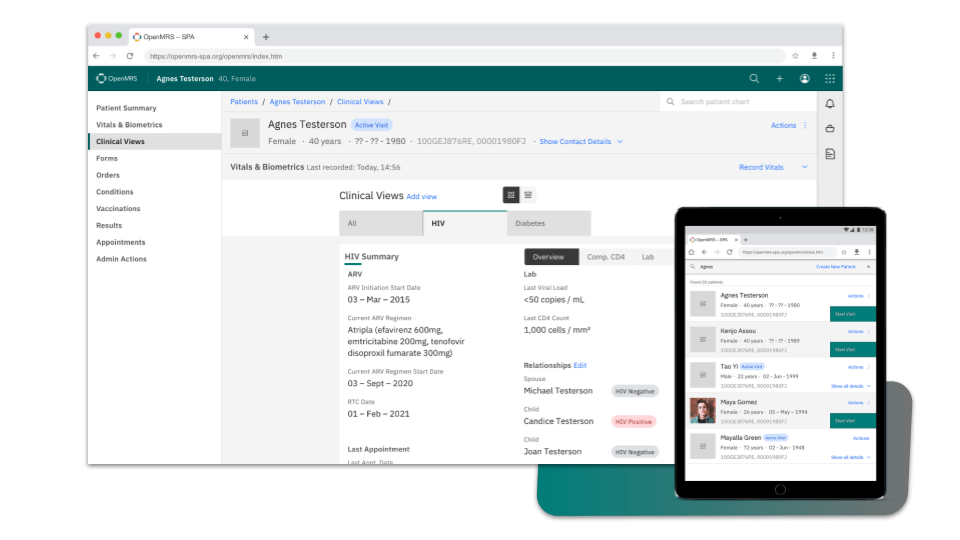
OpenMRS demos are designed to give you a taste of OpenMRS from an implementer’s point of view. It is a fully working copy of OpenMRS with observations on large numbers of anonymized patients. These are not real patients. Log in to examine all of OpenMRS’s features.

We currently have two different demonstration systems available. The first is a standard OpenMRS installation – what you would find if you download OpenMRS yourself from our download page. The other system has been customized and used in the “real world” for management of drug-resistant tuberculosis (MDR-TB). 

Explore the standard OpenMRS installation


Launch the OpenMRS 1.8 Demo

Username: admin
Password: test
This demo system resets itself periodically. If it is temporarily unavailable, please try again in a few minutes.

Getting started with the OpenMRS demo

The database underneath the demo webapp is automatically reset daily, so both feel free to make any and all changes that you want – just don’t assume any of your modifications will last.

Find/Create Patient

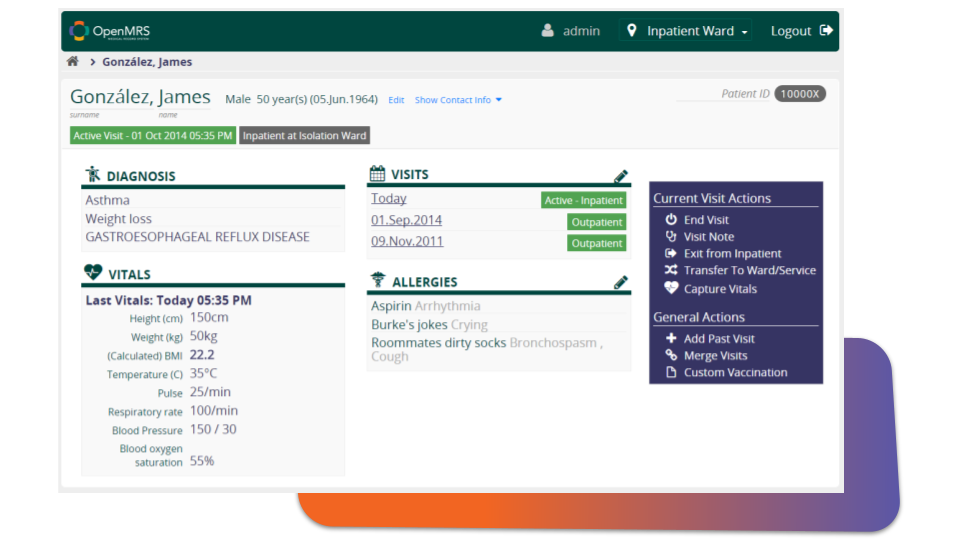
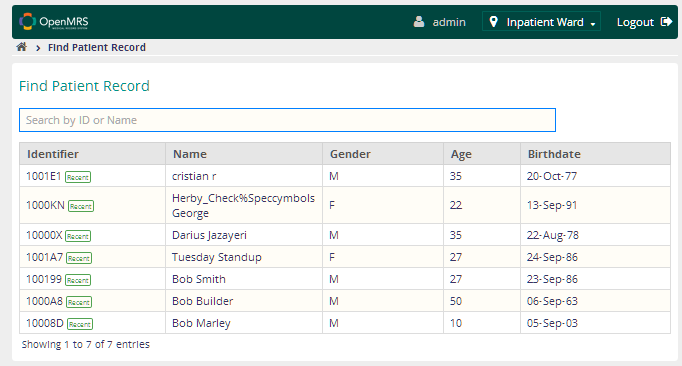
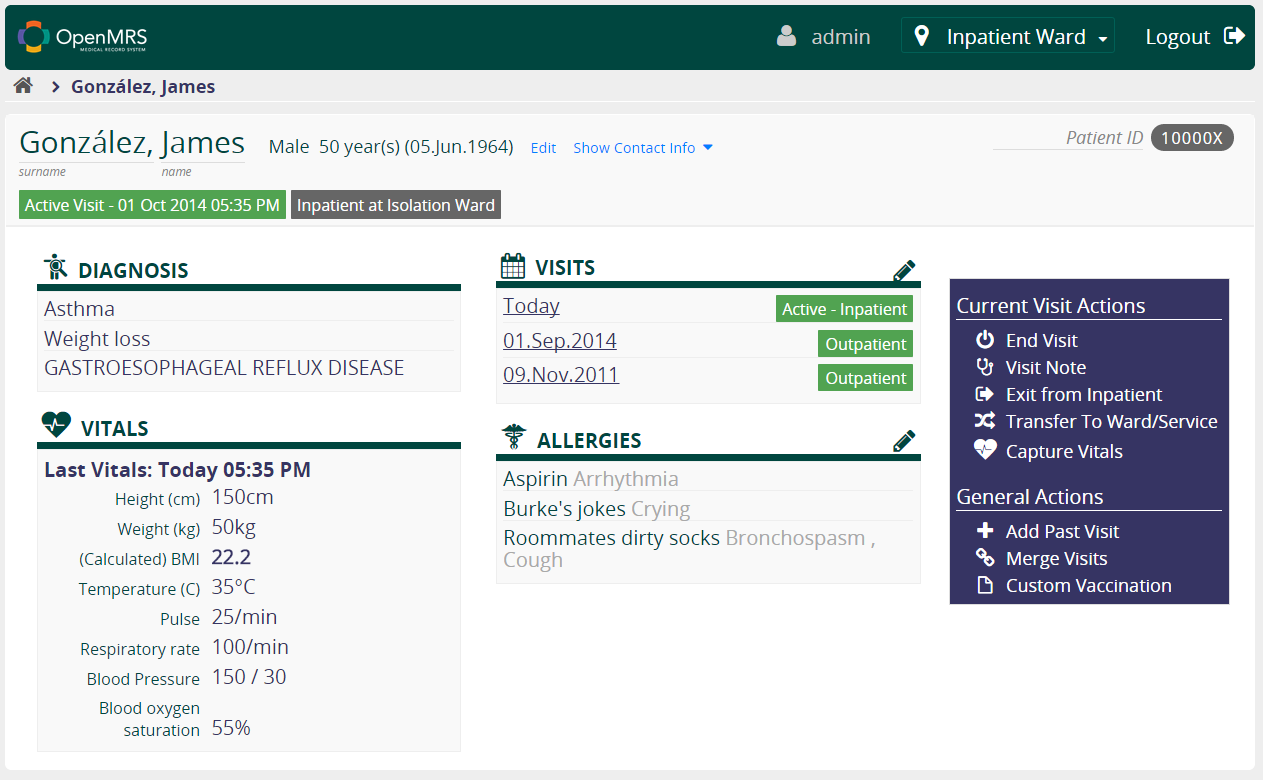
The first search box on the screen will let you find and select a current patient in the system.  After searching for a patient, you can click on his or her row to look at the patient’s dashboard; it contains detailed patient information, including looking at records of clinical visits, demographic information, graphs and medical forms. Some example patient names that you can search for are:

  • John Mamwa Shavola
  • Emon Emirio Kareng’Ag
  • Fredoh Eyen Chepleting

To fill out an encounter form on a patient, click the “Forms” tab on their dashboard and choose a form and select the download option for “Open with … Microsoft Infopath”.

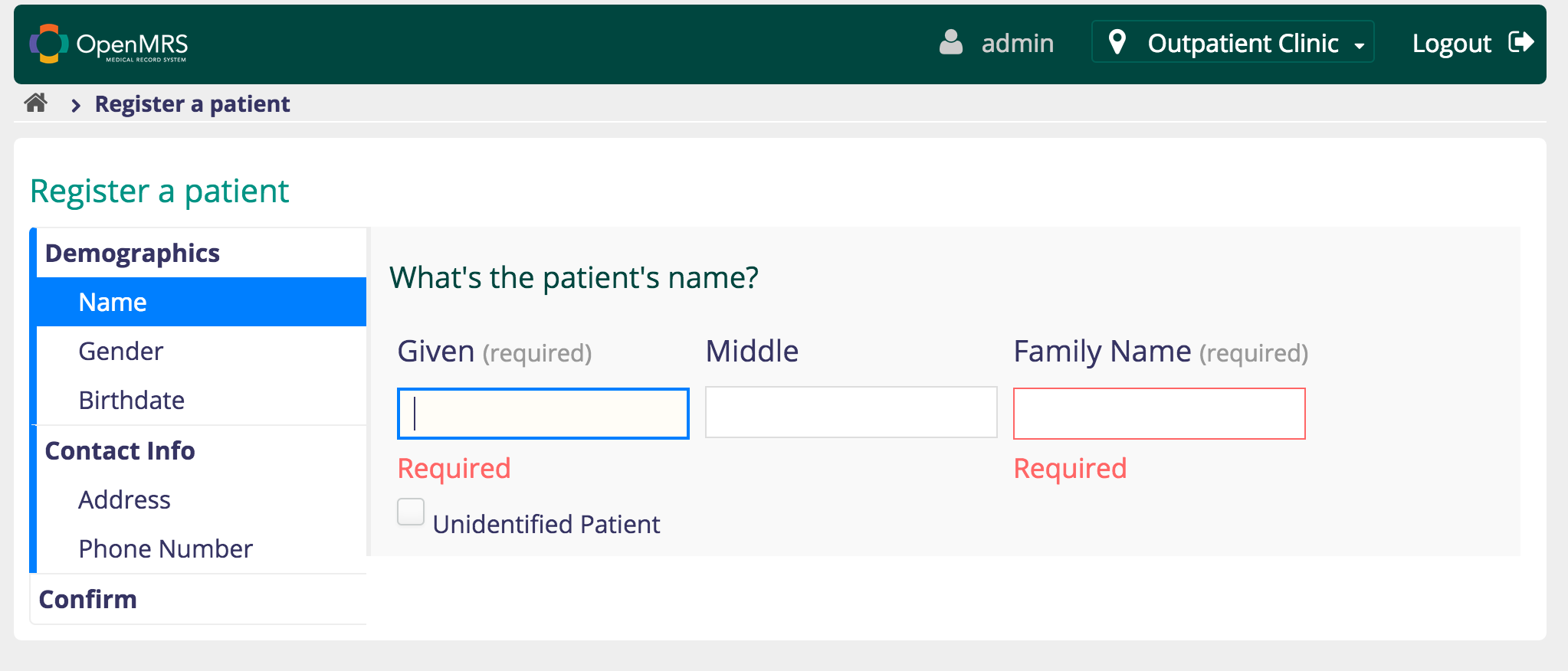
This page also lets you create a patient.  Use the lower portion of the screen to start the patient creation process.

Dictionary

OpenMRS is built around an extensible concept framework.  Simply put, this means that all patient readings, facts and observations are stored in a database, editable by the implementer, and not hard-coded into the database schema.  You can use the dictionary interface to either look at the 2000+ pre-installed concept definitions, or you can use it to write you own.  If you’d like to search for concepts, some good complicated examples are:

  • VACCINATIONS
  • HIV
  • CURRENT WHO STAGE

Cohort Builder

The Cohort Builder is another way to search through an OpenMRS medical database.  Rather than looking at an individual patient’s record, you can use the Cohort Builder to find associations between patients by searching for all patients meeting certain criteria.  In the Cohort Builder, enter one of the definitions in your dictionary, such as the ones listed above, and select a reading from the drop-down list to find all patients matching that reading.

Administration

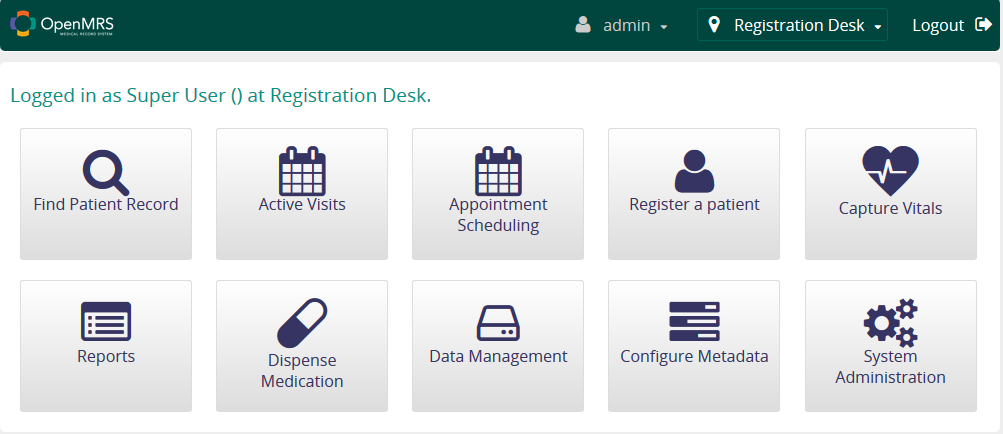
The Administration tab provides direct links to all of the features accessible through the other tabs, as well as database and system management interfaces.  The best way to learn about these features is to try them out.  Remember, this is a demo, reset daily — feel free to try everything!

My Profile

The My Profile tab allows you to change your user information.  It is pretty intuitive, but you can look around if you’d like.

Explore OpenMRS customized for tuberculosis

Launch the OpenMRS-TB Demo

Username: test2
Password: test123

This customized OpenMRS system allows you to see the specific forms, patient summaries, drug regimens, and laboratory data, as well as several reports, all designed specifically for management of drug-resistant tuberculosis. It is currently in use in Haiti and Pakistan, with more countries soon to come.

After logging in to the OpenMRS-TB demo system with the username and password above, you can Find a Patient, Enroll a New Patient, or view various Reports used in an MDR-TB clinic.

The Patient Lists section allows you to find groups of patients with some standard options. For well-characterized groups of patients, it is a simpler method than the standard OpenMRS Cohort Builder. Click Active MDR-TB Patients to get started. You can see short summaries of each patient, or you can create a data export of key variables using the Choose Columns to Display drop-down menu, selecting Basic Details, and clicking the List button.

Patients with one or more previous treatments make good examples. Clicking on a specific patient in the list of results will take you to that patient’s page.

The Chart tab shows a timeline of laboratory results and medications. Smears and cultures are tests of tuberculosis (TB) infection status in sputum. Drug sensitivity tests show which antibiotics are effective against a particular strain of TB.

From the home page, clicking a report link allows you to run examples of WHO reports. For example, you can also examine the number of patients taking each drug. From the home page, click MDR-TB Indicator Report to see a breakdown of patient data including drug regimen groups. Enter 2009 under “Year” and click Run. Clicking on the highlighted numbers that appear will show you summary data about each group of patients. WHO reports also work well for 2009.